Overview
Your store profile is how customers discover and connect with your business. A complete, attractive store profile builds trust and drives more inquiries.
Did you know? Stores with complete profiles receive 5x more customer visits than incomplete ones.
Before You Start
Gather these details:
- Store name and full address
- Contact numbers (phone + WhatsApp)
- Store photos (storefront, interior, displays)
- Operating hours for each day
- Google Maps location (optional but recommended)
Step-by-Step Guide
Step 1: Access Store Management
- Log in to your jeweller dashboard
- Click Stores in the left sidebar
- Click Add Store button
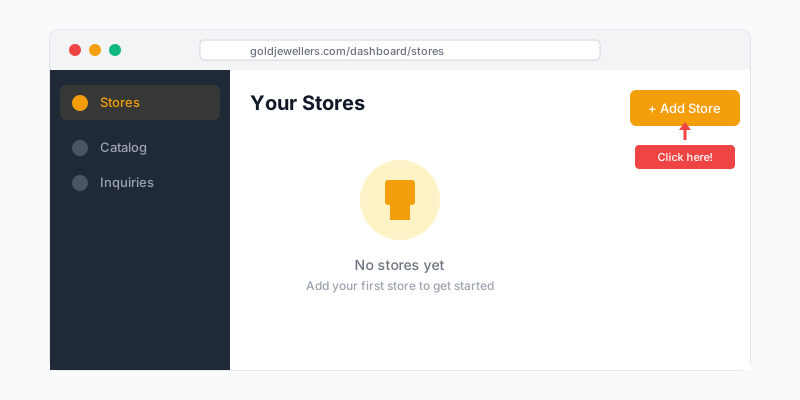 Navigate to Stores
Step 2: Basic Store Information
| Field | Description | Tips |
|---|---|---|
| Store Name | Display name for customers | Can differ from business name |
| Store Type | Showroom, Workshop, Boutique | Select the most accurate |
| Description | Brief store introduction | Highlight specialties |
 Store Basic Info
Writing Your Store Description:
- Mention years in business
- Highlight specializations (bridal, daily wear, custom)
- Include unique selling points
- Keep it under 200 words
Step 3: Location Details
Address Fields:
- Street address (Line 1 & 2)
- Landmark (helps customers find you)
- City and State
- PIN Code
 Location Details
Adding Map Location:
- Click Set on Map
- Search for your address or drag the pin
- Confirm the exact location
- Save coordinates
Why Map Location Matters:
- Enables "Stores Near Me" search
- Shows distance to customers
- Provides navigation directions
Step 4: Contact Information
Required:
- Primary phone number
- Email address
Recommended:
- WhatsApp number (enables instant chat)
- Alternative phone number
- Website URL (if you have one)
 Contact Information
WhatsApp Integration: When you add a WhatsApp number, customers can message you directly from your store page with one tap.
Step 5: Store Hours
Set your operating hours for each day:
- Select the day
- Set opening time
- Set closing time
- Mark as "Closed" for off days
 Store Hours
Special Hours:
- Add lunch break times if applicable
- Set holiday schedules in advance
- Update for festival timings
Tip: Accurate hours prevent customer frustration. Update them whenever your schedule changes.
Step 6: Store Images
Upload images that showcase your store:
Recommended Images:
- Storefront - External view with signage
- Interior - Main shopping area
- Display Cases - Jewelry arrangements
- Seating Area - Customer consultation space
- Workshop - If you do custom work
 Store Images
Image Guidelines:
- Minimum 5 images recommended
- Landscape orientation preferred
- Good lighting essential
- Show the space clean and organized
Step 7: Amenities & Services
Select available amenities:
- ♿ Wheelchair Accessible
- 🅿️ Parking Available
- 💳 Card Payment Accepted
- 🔧 Custom Orders
- 🎁 Gift Wrapping
- ✨ Jewelry Cleaning Service
- 📦 Home Delivery
 Amenities Selection
Step 8: Appointment Settings
Enable customer appointments:
- Toggle Accept Appointments
- Set available time slots
- Choose appointment duration
- Set buffer time between appointments
 Appointment Settings
Step 9: Review & Publish
- Click Preview to see how customers will view your store
- Verify all information is correct
- Click Save & Publish
After Publishing
Set as Primary Store
If this is your main location:
- Go to Stores list
- Click the ⭐ icon to set as Primary
- Primary store appears first in your profile
Monitor Performance
Track your store's performance:
- Views and visits
- Inquiry sources
- Popular products at this location
Best Practices
Do's ✅
- Keep hours updated, especially during festivals
- Respond to location-based inquiries promptly
- Upload seasonal decoration photos
- Enable WhatsApp for instant communication
Don'ts ❌
- Don't use old or misleading photos
- Don't leave contact fields empty
- Don't forget to update holiday hours
- Don't ignore the map location setup
Troubleshooting
Store not appearing in search?
- Verify store is Published
- Check if address is complete
- Ensure map coordinates are set
- Allow 24 hours for indexing
Map showing wrong location?
- Re-open map editor
- Search for exact address
- Manually drag pin to correct spot
- Save and verify
Customers can't find you?
- Add more specific landmarks
- Upload storefront photo with visible signage
- Add nearby famous locations in description