Overview
Adding products to your catalog is the foundation of your online presence. This guide walks you through creating detailed, attractive product listings that convert browsers into buyers.
Pro Tip: Products with complete information and high-quality images receive 3x more inquiries than basic listings.
Before You Start
Make sure you have the following ready:
- High-quality product images (minimum 3, recommended 5-8)
- Product specifications (weight, purity, dimensions)
- Pricing information
- SKU or internal reference number (optional)
Step-by-Step Guide
Step 1: Navigate to Catalog
- Log in to your dashboard
- Click Catalog in the left sidebar
- Click the Add Product button in the top right
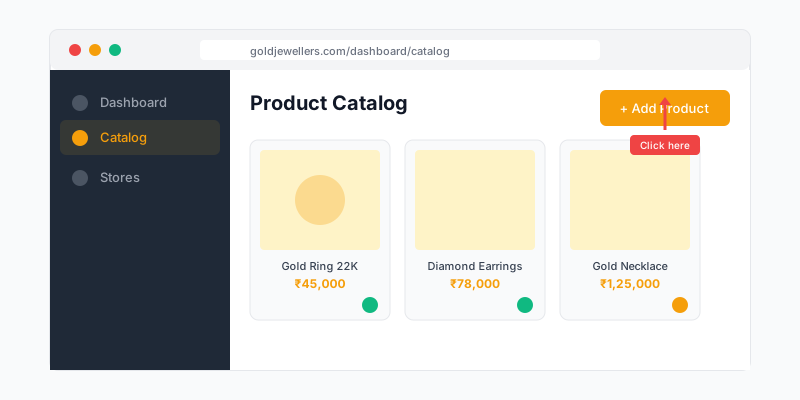 Navigate to Add Product
Step 2: Basic Information
Fill in the essential product details:
| Field | Description | Example |
|---|---|---|
| Product Name | Descriptive, keyword-rich title | "22K Gold Diamond Solitaire Engagement Ring" |
| SKU | Your internal reference code | "RING-22K-DS-001" |
| Category | Primary product type | Rings > Engagement Rings |
| Description | Detailed product description | See tips below |
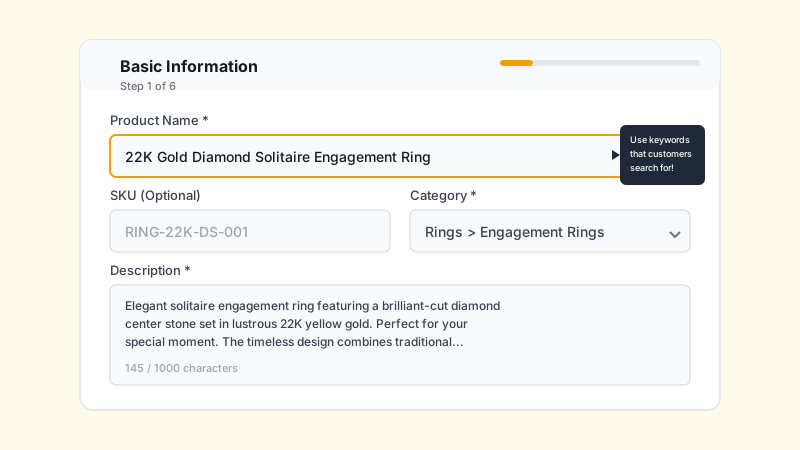 Basic Information Form
Writing Great Descriptions:
- Start with the key selling points
- Include material details and craftsmanship
- Mention occasions (wedding, daily wear, gifting)
- Add care instructions
Step 3: Upload Images
High-quality images are crucial for online jewelry sales.
Image Requirements:
- Minimum resolution: 1000x1000 pixels
- Format: JPG or PNG
- Background: White or neutral preferred
- File size: Under 5MB each
Recommended Shots:
- Hero shot - Full product, front view
- Detail shot - Close-up of craftsmanship
- Scale shot - Product worn or with size reference
- Alternate angles - Side, back views
- Packaging - Gift box if applicable
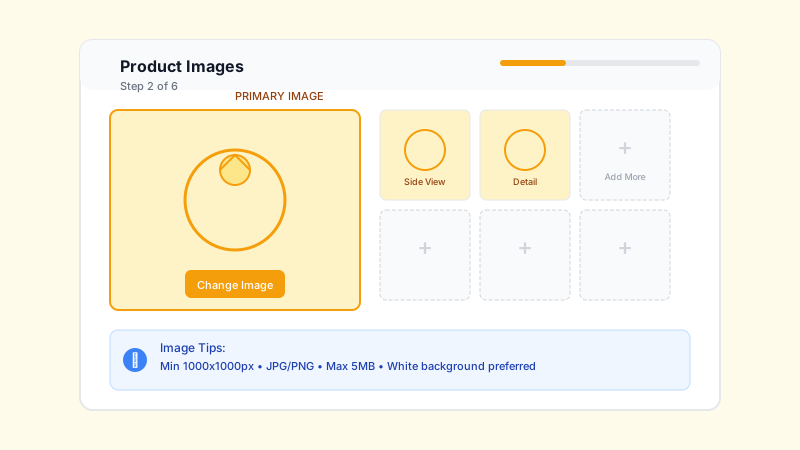 Upload Images
Image Tips:
- Use natural lighting or a lightbox
- Show the actual product color accurately
- Include close-ups of hallmarks and certifications
- First image becomes the thumbnail - make it count!
Step 4: Materials & Specifications
Select all materials used in the product:
Metal Selection:
- Primary metal (Gold 22K, 18K, Silver, Platinum)
- Metal weight in grams
- Purity/Fineness
Stone Details (if applicable):
- Stone type (Diamond, Ruby, Emerald, etc.)
- Carat weight
- Cut, Clarity, Color (for diamonds)
- Certification details
 Materials Selection
Step 5: Pricing
Set your product pricing:
| Pricing Option | Best For |
|---|---|
| Fixed Price | Ready stock items |
| Price Range | Made-to-order with variations |
| Price on Request | High-value custom pieces |
Additional Pricing Fields:
- Making charges (% or fixed)
- Stone charges (if separate)
- GST inclusion toggle
 Pricing Setup
Pricing Strategy:
- Be competitive but don't undervalue your craftsmanship
- Include making charges transparently
- Update prices when gold rates change significantly
Step 6: Inventory & Availability
Configure stock and availability:
- In Stock - Ready for immediate purchase
- Made to Order - Specify lead time (e.g., 7-14 days)
- Out of Stock - Temporarily unavailable
 Inventory Settings
Step 7: Product Flags & Visibility
Enhance discoverability with flags:
- ⭐ Featured - Appears prominently on your store page
- 🔥 Trending - Shows in trending sections
- 🆕 New Arrival - Highlights recent additions
- 💎 Bestseller - Your top-selling items
Publishing:
- Toggle Published to make visible to customers
- Save as Draft to continue editing later
 Product Flags
Step 8: Review & Save
- Preview your listing using the Preview button
- Check all information is accurate
- Click Save Product
Best Practices
Do's ✅
- Use descriptive, search-friendly titles
- Upload multiple high-quality images
- Keep pricing updated with market rates
- Add all relevant specifications
- Write unique descriptions for each product
Don'ts ❌
- Don't use stock photos or copied images
- Don't leave fields empty
- Don't use ALL CAPS in titles
- Don't forget to update stock status
- Don't use misleading descriptions
Troubleshooting
Images not uploading?
- Check file size (max 5MB)
- Ensure format is JPG or PNG
- Try a different browser
- Clear browser cache
Product not appearing in search?
- Verify product is Published
- Check category assignment
- Allow 5-10 minutes for indexing
- Ensure title contains searchable keywords
Price not displaying correctly?
- Check GST settings
- Verify currency format
- Ensure price field isn't empty
Related Articles
Need Help?
If you're stuck, our support team is here to help. Contact Support